Execute the command below in console or SSH session.
esxcfg-nics -l
Read more...
Showing posts with label Vmware. Show all posts
Showing posts with label Vmware. Show all posts
Tuesday, August 5, 2014

Tuesday, October 30, 2012
Enable Syslogging on Vmware ESX 3.5
To log events from an ESX host to a remote syslog server:
- Log in to the ESX host as root using an SSH client.
- Open the /etc/syslog.conf file using a text editor.
- Add this entry at the end of the file:
*.* @
*.* @192.168.10.1
to open file "vi /etc/syslog.conf"
add line
press esc
type :wq and press enter
type service syslog restart press enter
Read more...
Enable Syslogging on ESXi 4.x
Connect to your ESXi host by using Vsphere Client.
1) Open Configuration Tab and choose Advanced Settings under the Software part from left.
2)Find syslog from the tree view. Enter your syslog server IP number and port number to the right pane.
3) Connect your ESXi host by using SSH and login as root
4) type "ps | grep syslog" press enter without quotas. Note the PID number
5) type "kill -HUP PIDNumber" press enter.
6) Your host will begin to send syslog messages to your syslog server
Read more...
1) Open Configuration Tab and choose Advanced Settings under the Software part from left.
2)Find syslog from the tree view. Enter your syslog server IP number and port number to the right pane.
3) Connect your ESXi host by using SSH and login as root
4) type "ps | grep syslog" press enter without quotas. Note the PID number
5) type "kill -HUP PIDNumber" press enter.
6) Your host will begin to send syslog messages to your syslog server
Read more...
Enable SSH on ESXi 4x
) At the console of the ESXi host, press ALT-F1 to access the console window.
2) Enter unsupported in the console and then press Enter. You will not see the text you type in.
3) If you typed in unsupported correctly, you will see the Tech Support Mode warning and a password prompt. Enter the password for the root login.
4) You should then see the prompt of ~ #. Edit the file inetd.conf (enter the command vi /etc/inetd.conf).
5) Find the lines that begins with #ssh and remove the #. Then save the file. If you're new to using vi, then move the cursor down to #ssh line and then press the Insert key. Move the cursor over one space and then hit backspace to delete the #. Then press ESC and type in :wq to save the file and exit vi. If you make a mistake, you can press the ESC key and then type it :q! to quit vi without saving the file.
Note: there are two lines for SSH with ESXi 4.x now - one for regular IP and the other for IPv6. You should the line appropriate to the protocol you'll use to access your host.
6) Once you've closed the vi editor, you can either restart the host or restart the inetd process. To restart inetd run ps | grep inetd to determine the process ID for the inetd process. The output of the command will be something like 4399 4399 busybox inetd, and the process ID is 4399. Then run kill -HUP (kill -HUP 4399) and you'll then be able to access the host via SSH.
Read more...
2) Enter unsupported in the console and then press Enter. You will not see the text you type in.
3) If you typed in unsupported correctly, you will see the Tech Support Mode warning and a password prompt. Enter the password for the root login.
4) You should then see the prompt of ~ #. Edit the file inetd.conf (enter the command vi /etc/inetd.conf).
5) Find the lines that begins with #ssh and remove the #. Then save the file. If you're new to using vi, then move the cursor down to #ssh line and then press the Insert key. Move the cursor over one space and then hit backspace to delete the #. Then press ESC and type in :wq to save the file and exit vi. If you make a mistake, you can press the ESC key and then type it :q! to quit vi without saving the file.
Note: there are two lines for SSH with ESXi 4.x now - one for regular IP and the other for IPv6. You should the line appropriate to the protocol you'll use to access your host.
6) Once you've closed the vi editor, you can either restart the host or restart the inetd process. To restart inetd run ps | grep inetd to determine the process ID for the inetd process. The output of the command will be something like 4399 4399 busybox inetd, and the process ID is 4399. Then run kill -HUP
Read more...
Thursday, May 26, 2011
Vmware ESX4.1 Add ISCSI Storage
Follow the steps below to create new VMKERNEL Connection to use with ISCSI adapter.
If you dont do the steps below and try to add iscsi target from dynamic discovery
You will see the message
"The host bus adapter is not associated with a vmknic. To configure targets the adapter should be associated with a vmknic. Refer to the VMware documentation to associate the adapter with a vmknic."
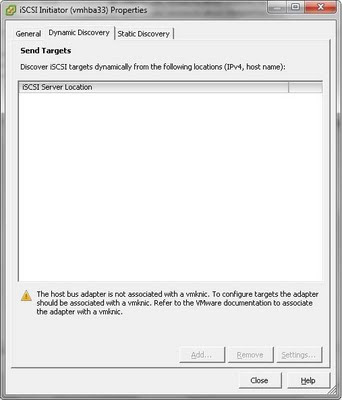
Procedure
If you dont do the steps below and try to add iscsi target from dynamic discovery
You will see the message
"The host bus adapter is not associated with a vmknic. To configure targets the adapter should be associated with a vmknic. Refer to the VMware documentation to associate the adapter with a vmknic."

Procedure
1 Log in to the vSphere Client and select the host from the inventory panel.
2 Click the Configuration tab and click Networking.
3 In the Virtual Switch view, click Add Networking.
4 Select VMkernel and click Next.
5 Select Create a virtual switch to create a new vSwitch.
6 Select a NIC you want to use for iSCSI traffic.
7 Click Next.
8 Enter a network label.
Network label is a friendly name that identifies the VMkernel port that you are creating, for example,
iSCSI.
9 Click Next.
IMPORTANT If you are creating a port for the dependent hardware iSCSI adapter, make sure to select the NIC that corresponds to the iSCSI component.
Use the vSphere CLI command to determine the name of the physical NIC, with which the iSCSI adapter is associated.(You should press Alt+F1 for command mode on esx)
Alt + F2 turn back)
esxcli swiscsi vmnic list -d vmhba#
vmhba# is the name of the iSCSI adapter.
vmhba# is the name of the iSCSI adapter.
You might be enable TEch Support mode to execute the commands above;
Enabling and Accessing Tech Support ModeTo enable local or remote TSM from the Direct Console User Interface (DCUI):
1.At the DCUI of the ESXi host, press F2 and provide credentials when prompted.
2.Scroll to Troubleshooting Options, and press Enter.
3.If you want to enable local TSM, select Local Tech Support and press Enter once. This allows users to login on the virtual console of the ESXi host.
If you want to enable remote TSM, select Remote Tech Support (SSH) and press Enter once. This allows users to login via SSH on the virtual console of the ESXi host.
4.Optionally, if you want to configure the timeout for TSM:
a.Select Modify Tech Support timeout and press Enter.
b.Enter the desired timeout value in minutes and press Enter.
6.Press Esc three times to return to the main DCUI screen.
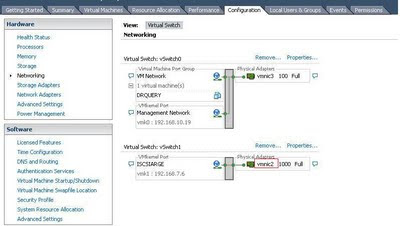
After you have done the above 9 steps configuration- networking tab should be like picture below;
Before adding to ESX server you should create target and LUNs on ISCSI device.
1.At the DCUI of the ESXi host, press F2 and provide credentials when prompted.
2.Scroll to Troubleshooting Options, and press Enter.
3.If you want to enable local TSM, select Local Tech Support and press Enter once. This allows users to login on the virtual console of the ESXi host.
If you want to enable remote TSM, select Remote Tech Support (SSH) and press Enter once. This allows users to login via SSH on the virtual console of the ESXi host.
4.Optionally, if you want to configure the timeout for TSM:
a.Select Modify Tech Support timeout and press Enter.
b.Enter the desired timeout value in minutes and press Enter.
6.Press Esc three times to return to the main DCUI screen.
After you have done the above 9 steps configuration- networking tab should be like picture below;

Before adding to ESX server you should create target and LUNs on ISCSI device.
After this open Configuration Tab and select storage adapters from left menu.
Select the appropirate hba from the right menu and click properties and add IP and port (default 3260) of ISCSI device to dynamic discovery tab and 2-10 seconds later control the static discovery tab if the address added correctly

LUNs that you have created on ISCSI device should be visible on the below part like "QNAP ISCSI Disk (naa....) on the picture.
After adding ISCSI device IP, we should add LUNs as a storage to ESX server.
Open Configuration Tab- Select Storage from the left menu. Select AddStorage from right side.
Select Disk / LUN form the opened window click next.
Select the LUN that you will use as a datastore. Click Next give Name ex: "DRSQLSERVER"
Select the LUN that you will use as a datastore. Click Next give Name ex: "DRSQLSERVER"
Next,next,finish.
Then on previous screen click refresh to see your new datastore. Than you can use this datastore to install new virtual machine.

http://kb.vmware.com/selfservice/microsites/search.do?language=en_US&cmd=displayKC&externalId=1025644
http://searchvmware.techtarget.com/tip/VMware-Consolidated-Backup-Adding-an-iSCSI-LUN-to-ESX-Server
http://www.vladan.fr/how-to-connect-esx4-vsphere-to-openfiler-iscsi-nas/
http://www.mattlestock.com/2009/06/esxi-iscsi/
http://www.vmware.com/files/pdf/vmware_esxi_management_wp.pdf
Read more...
Friday, March 27, 2009

Thursday, March 26, 2009
System administrator has set policies to prevent this installation error

If you get the error above while installing Vmware 2.0.
Download and install the patch from the link below.And restart your PC/Server.
Read more...
Subscribe to:
Posts (Atom)
Subscribe To This Web Site


 Posts
All Comments
Posts
All Comments


